 BUBUTV
Import from Photos or Files
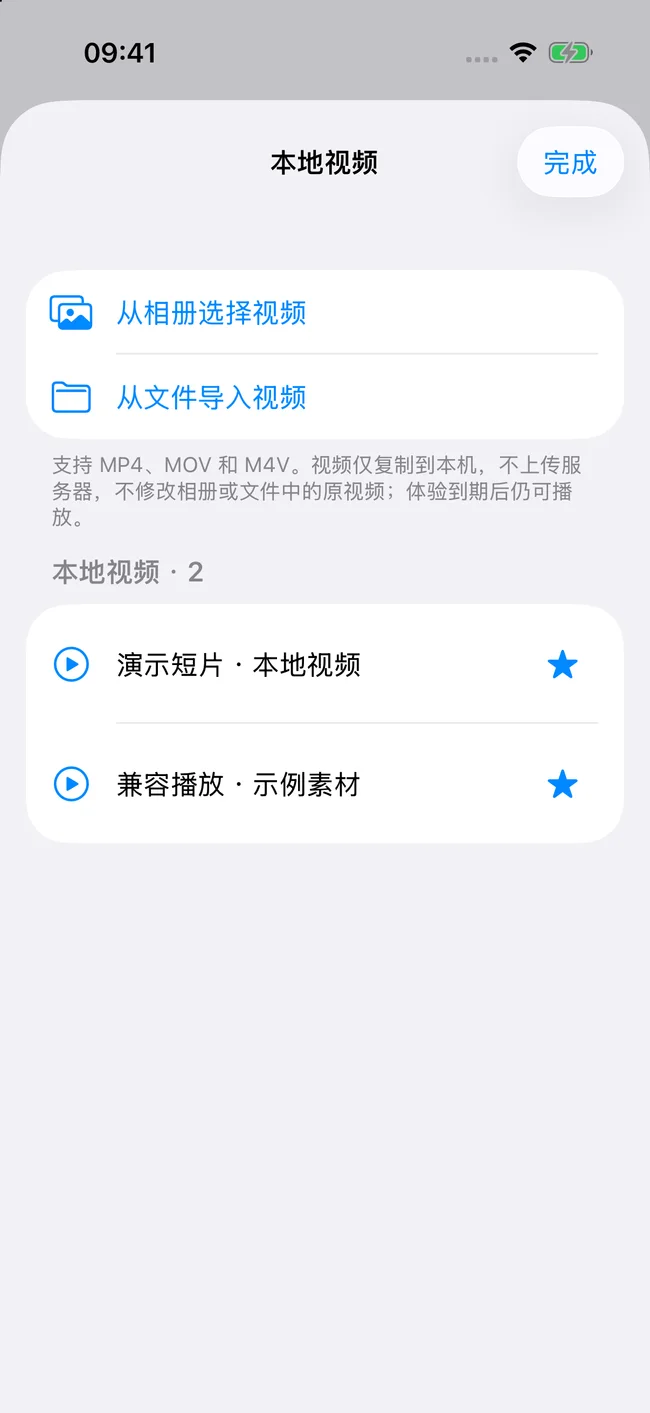
- Open Local Videos from BUBUTV’s iPhone home page.
- Choose the option to select videos from Photos or import videos from Files, then use the system picker to select files you are entitled to use.
- Wait for the system to finish downloading or copying, then return to the local video list. The app imports only the files you explicitly select.
Importing saves a copy inside the app, so leave enough storage space. Videos in iCloud or another file provider may need an internet connection to download first. Copying large files also takes time.
File formats and playback requirements
Local import supports MP4, MOV and M4V containers. Files with the same extension may use different codecs. Playback still depends on the codec, file integrity and actual device support.
If a video will not import or play, first use system tools to check that the original file is complete and fully downloaded, then compare with a small, ordinary video. Keep the original file: do not delete your only copy while troubleshooting.
Play videos and add favorites
After importing, tap a video in the iPhone list to watch it. In CarPlay, select Local Videos in the library to play its audio. Tap the star to add a favorite.
Park before operating the app. This version uses system audio templates in CarPlay with no video picture there; phone video remains available. External video requires a compatible output route actually offered by the system. See the compatibility guide.
Delete only the app’s copy
Swipe left on a video in the local video list, choose Delete, then confirm deletion of the video and its favorite. This removes the video copy inside the app and its related favorite. It does not delete the original video in Photos or Files.
Deleting the entire app removes its local documents and data. The iOS Offload App option may retain documents and data, and system backups may retain older copies. Keep your original files and any backups you need.
Keep playing after the trial
Local videos, your own sources and favorites remain free to manage and play. Their playback does not use the cumulative trial allowance shared by casting, mirroring and browser video. The end of the trial does not automatically delete imported videos.
Purchasing Pro does not include third-party films or shows, platform memberships or video support for your vehicle. See the trial and purchase details for the full rules.
Slow imports, missing files or playback failures
If importing is slow, check the file provider’s download progress, the network and available iPhone storage. Wait until the import is complete before playing. If the original file is visible only on another device, confirm that you can access it through the system picker on this iPhone.
If playback fails, record the file container, source type and error message. Follow the troubleshooting guide to compare with another ordinary video. You do not need to send private videos or content you are not authorized to share when reporting a problem.